Bizagi Studio User Interface Explained
Overview
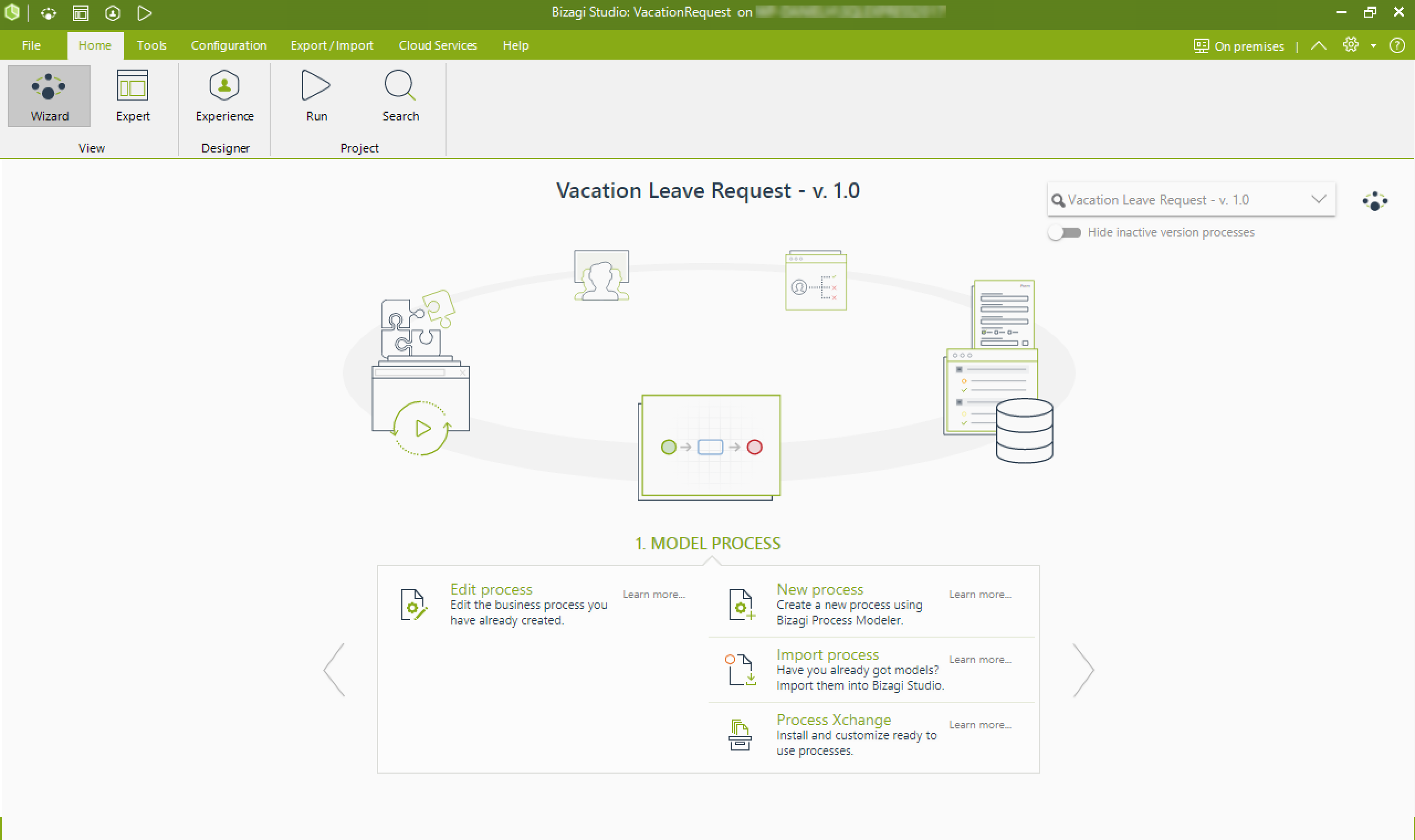
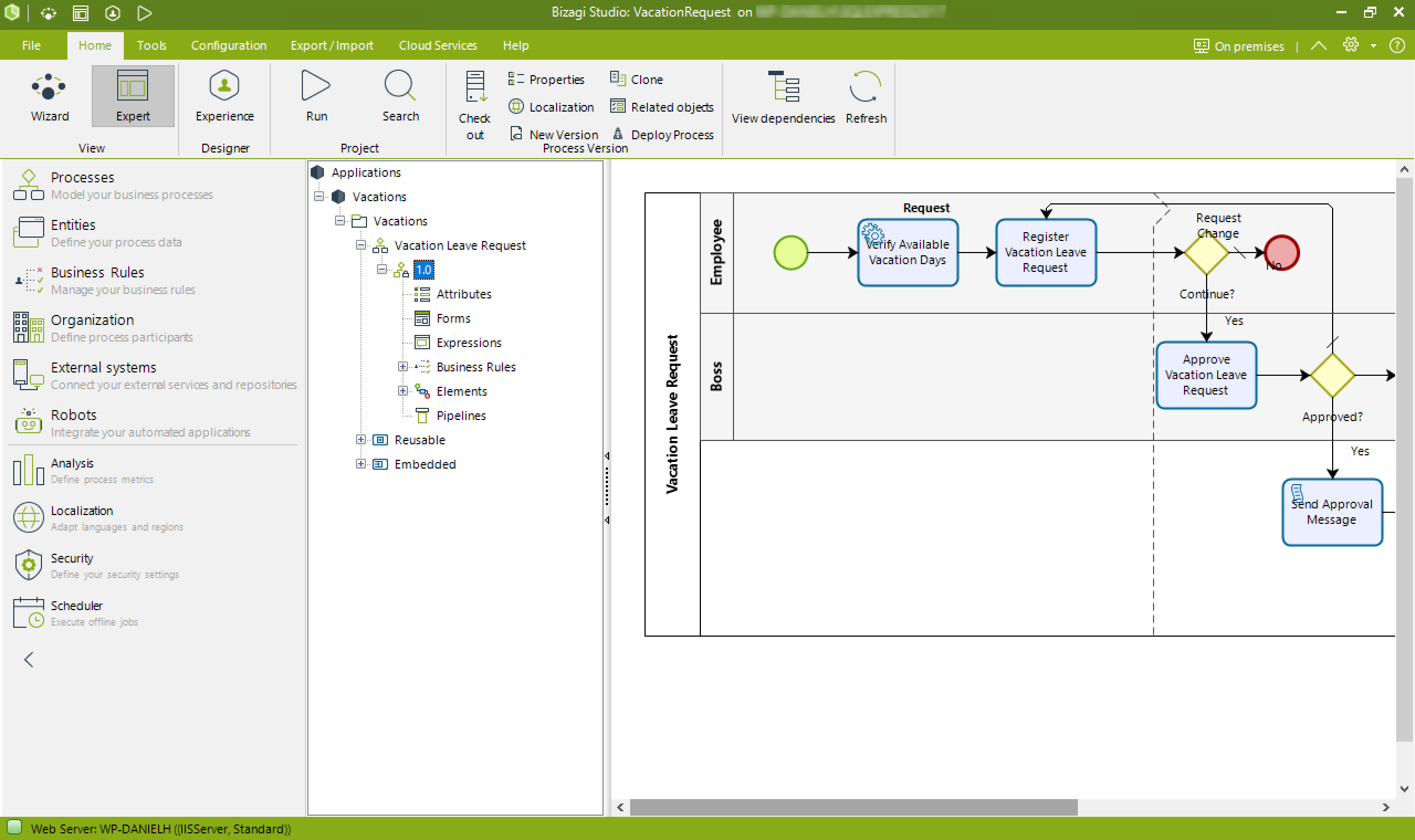
Bizagi Studio has two main views: the Wizard view and the Expert view.
Every project can be automated using the Wizard view; however, some advanced features are available only in the Expert view. To switch between the views, locate the Home tab in Bizagi Studio's upper ribbon, and select the Expert or Wizard button in the View group.
Wizard View
Expert View
The Ribbon
The Ribbon contains the main controls to manage your project. These are organized into different tabs and are briefly described below.

File Tab
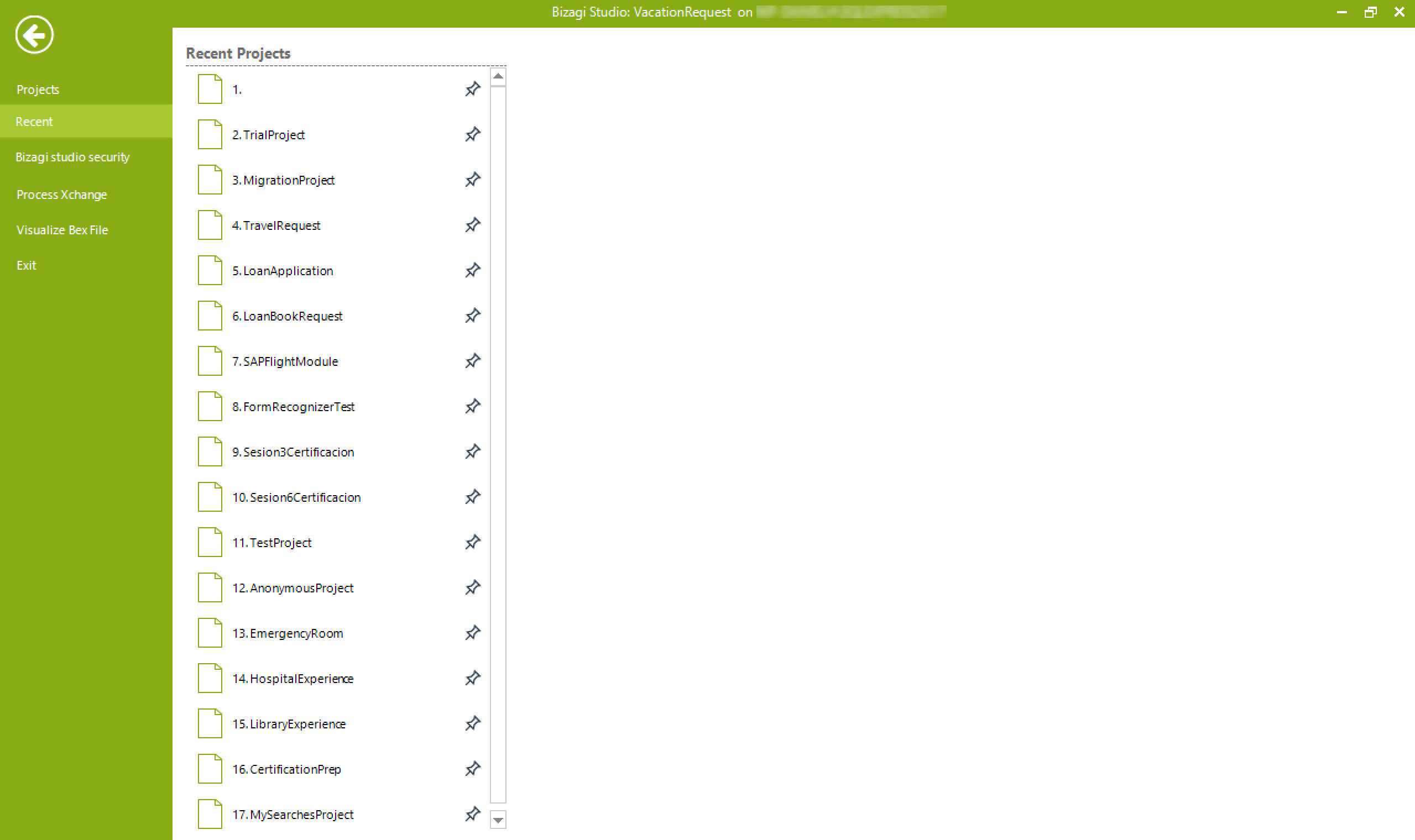
MENU OPTION | DESCRIPTION
-
Projects:
Creates a new Bizagi project. Opens an existing Bizagi project. Manages existing projects. -
Recent:
Quick access to the latest projects that have been used. -
Bizagi Studio Security:
Control user rights to elements of a Bizagi project. -
Process Xchange:
Access the Free Process Xchange to download ready-to-use executable Processes. -
Visualize Bex File:
Opens a browser to select a Bex file. -
Exit:
Exits Bizagi Studio.
Home Tab
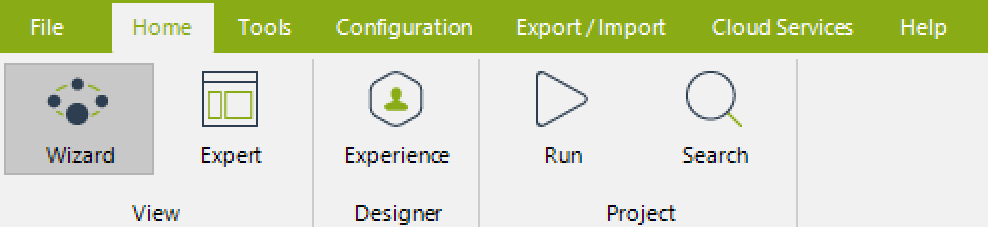
The Home tab contains three main sections that are always displayed.
GROUP | MENU OPTION | DESCRIPTION
View
- Wizard: Switch to the Wizard View.
- Expert: Switch to the Expert View.
Designer
- Experience: Customize end user's experience in Bizagi's Work Portal. Define actions, data access, and searches for user groups (Stakeholders).
Project
- Run: Access the Bizagi web application (Work Portal) to automate the processes.
- Search: Search in the project for objects like entities, attributes, business rules, and processes.
Contextual Menus
This contextual menu gives quick access to commonly used options in each feature. Below are examples of two different contextual menus:
This shows the Home menu layout, with the contextual menu called Process, when accessing a specific Process in the Processes module:
Process Contextual Menu
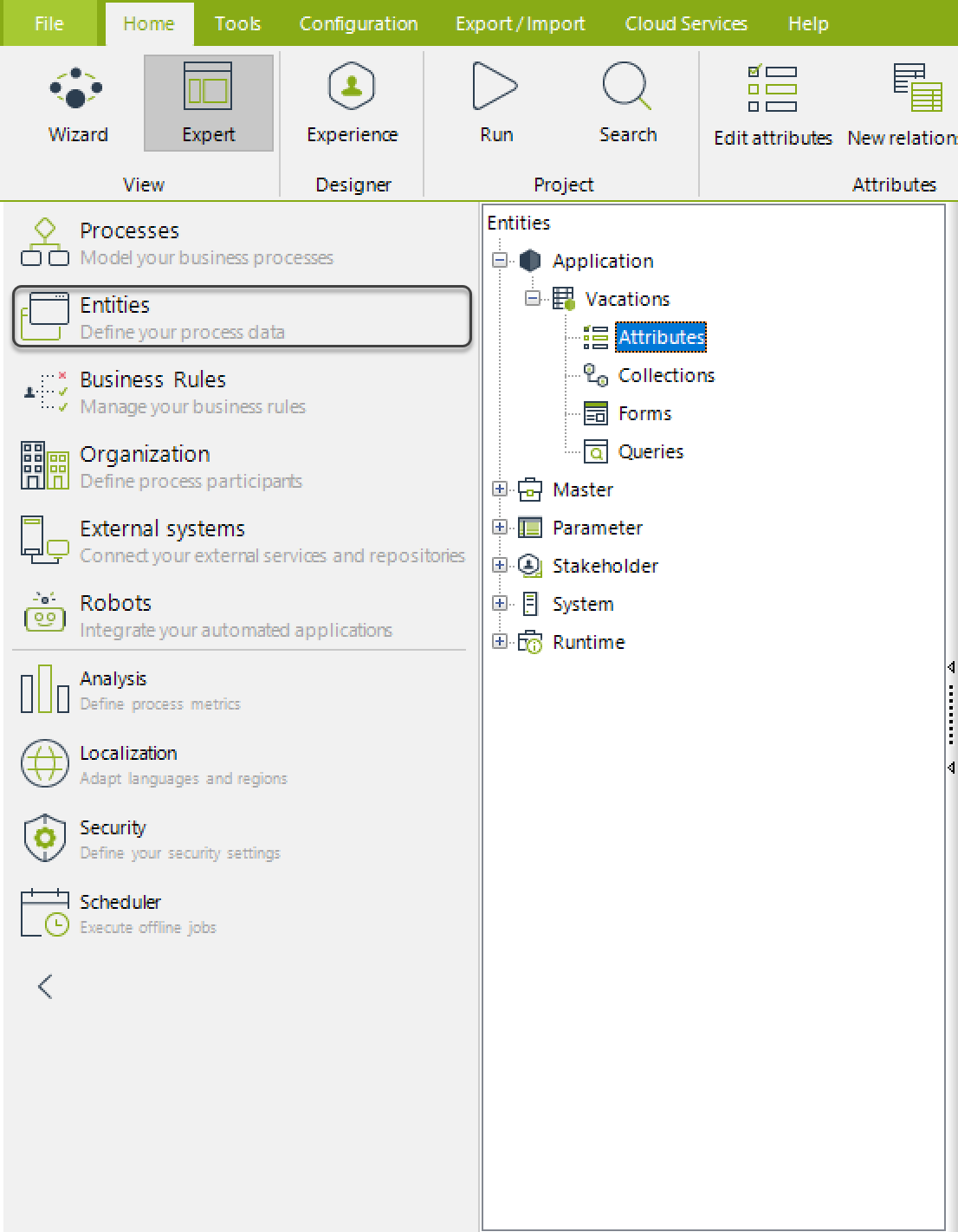
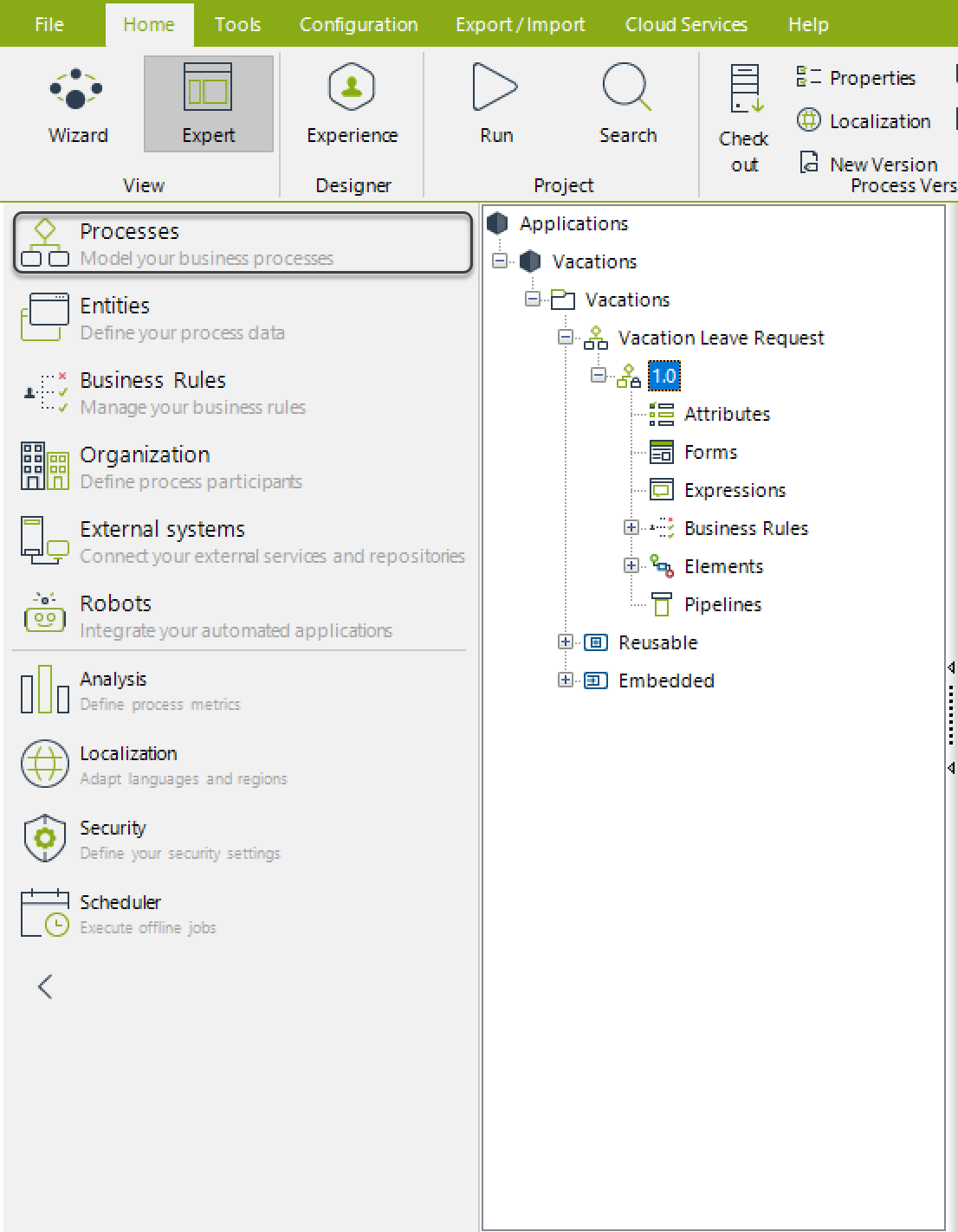 This shows a slight altered view of the Home menu layout, with the contextual menu called Attributes, when accessing the attributes of a specific Entity in the Entities module:
Attributes Contextual Menu
Tools Tab
GROUP | MENU OPTION | DESCRIPTION
User Interface
- Widgets: Access the Widgets menu to create and manage customized HTML controls.
System Integration
- Connectors: Access the Connectors menu to download integration packages for corporate systems.
- Components: Bizagi’s integration layer for connecting to web and REST services, or for Process-level integration (transactional).
Business Rules
- Library Rules: Shared business rules across all applications and processes.
- Dynamic Rules Tracer: Trace rules line by line to assess rule execution in the Work Portal.
Maintenance
- Remove unused objects: Identify and remove unused elements from your project to free up database space.
Configuration Tab

GROUP | MENU OPTION | DESCRIPTION
Options
- Environment: Configure email, scheduler, logging, and file uploads for each environment.
- Proxy: Define the proxy settings for connecting to external services.
Business
- Localization: Set global options like notification templates and localization preferences.
Tracing
- Activate Tracing: Track behaviors for entities, rules, validations, and other elements.
Web Server
- Server Type: Choose between IIS or IIS Express for the project.
Entities for Live Process
- Define Entities: Specify entities accessible from Live Processes.
Export/Import Tab
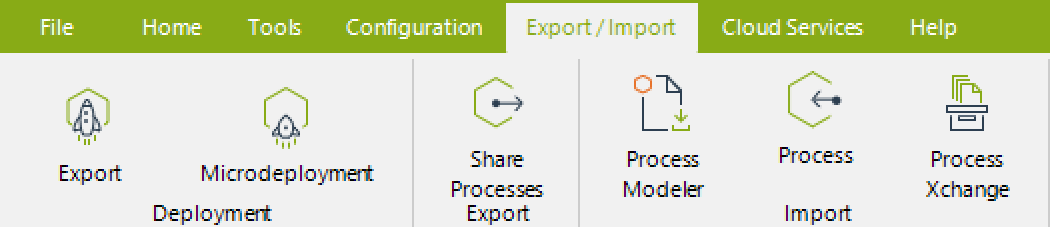
GROUP | MENU OPTION | DESCRIPTION
Deployment
- Export: Select processes for deployment to test or production environments.
- Microdeployment: Deploy specific minor changes in processes.
Sharing Processes
- Share Processes: Share your processes with metadata for reuse in another Bizagi Studio project.
Cloud Services

GROUP | MENU OPTION | DESCRIPTION
Project
- Upload: Upload your project to your Studio Services Subscription (Cloud).
Help Tab

GROUP | SUB OPTION | DESCRIPTION
Help
- User Guide: Access the user guide, which can be downloaded as a PDF.
- Free Support: Access online support forums.
Community
- Feedback: Share feedback and ideas for improvements.
- Tell a friend: Share Bizagi Suite with others.
About
- Product Information: View current and past version details.
- License: Manage your Bizagi license.
Style and Language

MENU OPTION | SUB OPTION | DESCRIPTION
Hide / Show Control
- Minimize the ribbon.
Settings
- Language: Switch Bizagi Studio's language. Requires a restart.
- Help: Opens the User Guide in a browser.
Host Name
- Display the name of the host (Studio Services or On-premises).