Reusable Sub-Processes
To demonstrate how to transform a Task into a Reusable Sub-Process, we will use the following diagram:
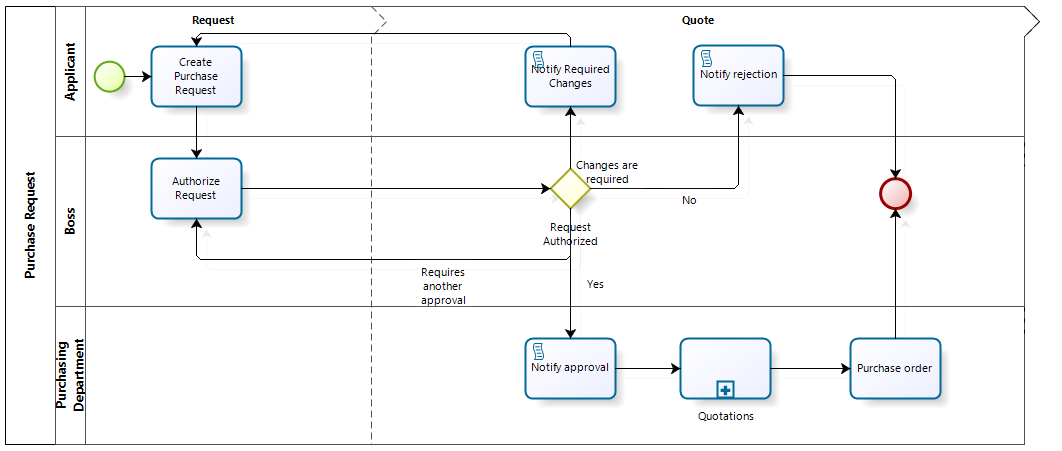
The diagram refers to a Purchase Request Process. We are going to transform the Purchase Order task into a Reusable Sub-Process.
Steps to Configure a Reusable Sub-Process
-
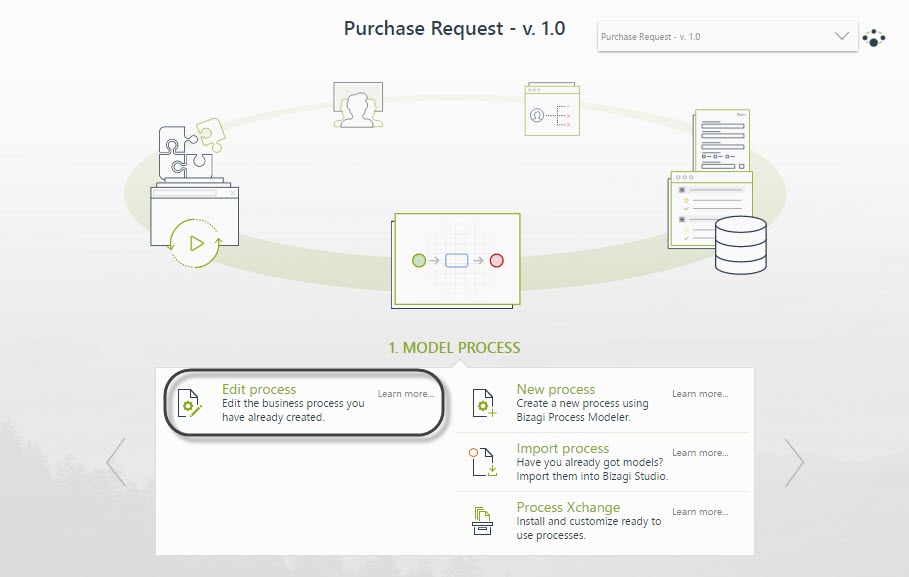
In the First step of the wizard, click Edit Process.
-
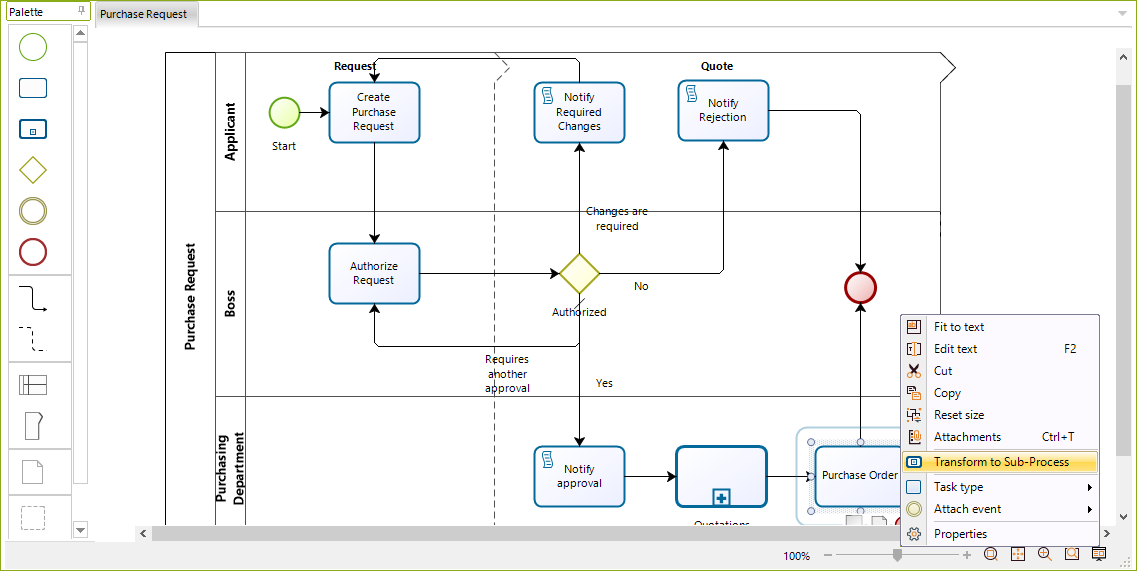
Right-click the Task you wish to convert to a Reusable Sub-Process,
- In this case, the Purchase Order task.
- Select Transform to Sub-Process.
-
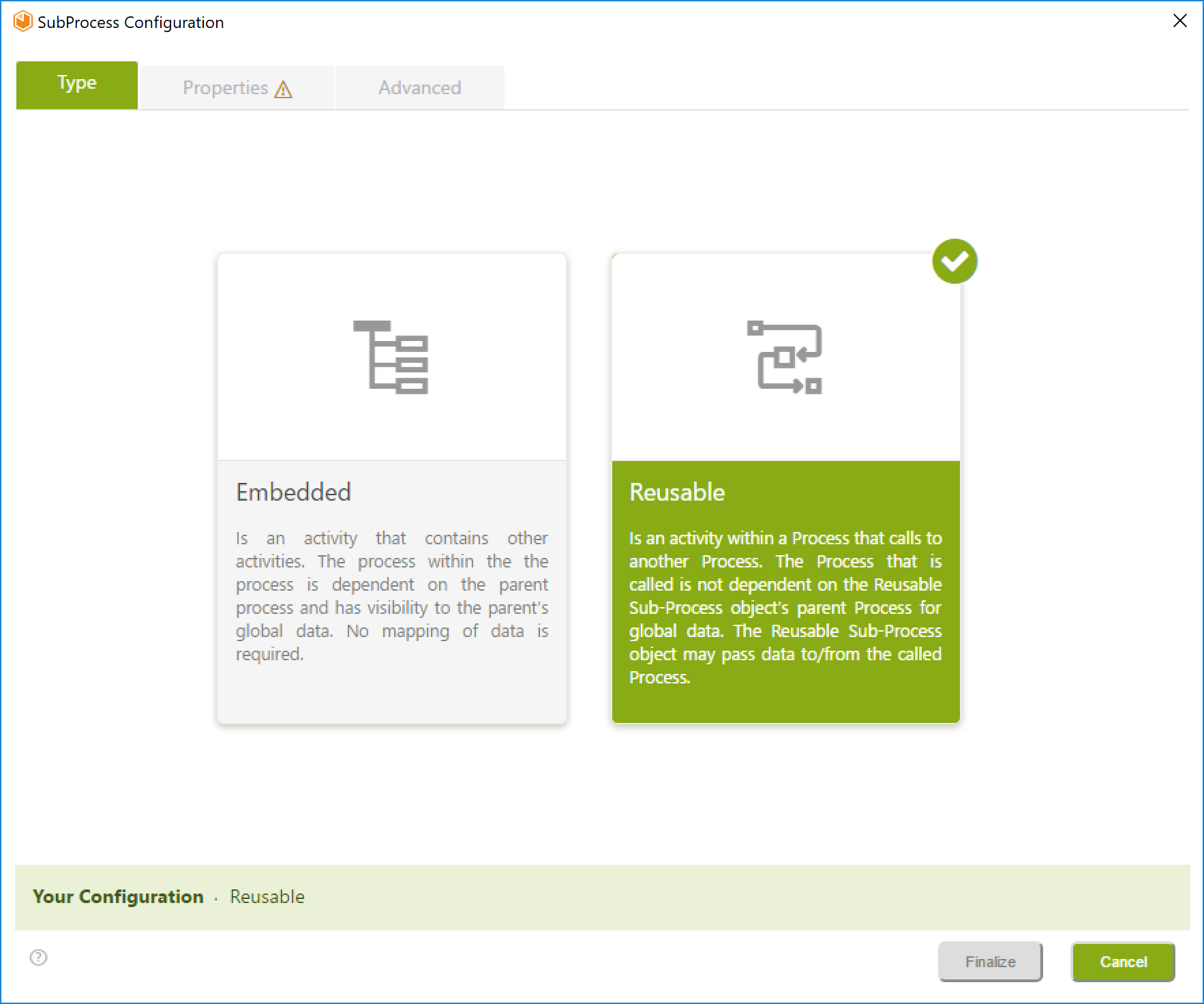
The Sub-Process Wizard will launch, showing the Sub-Process types.
- Select the Reusable option.
-
A Properties window will display the following:
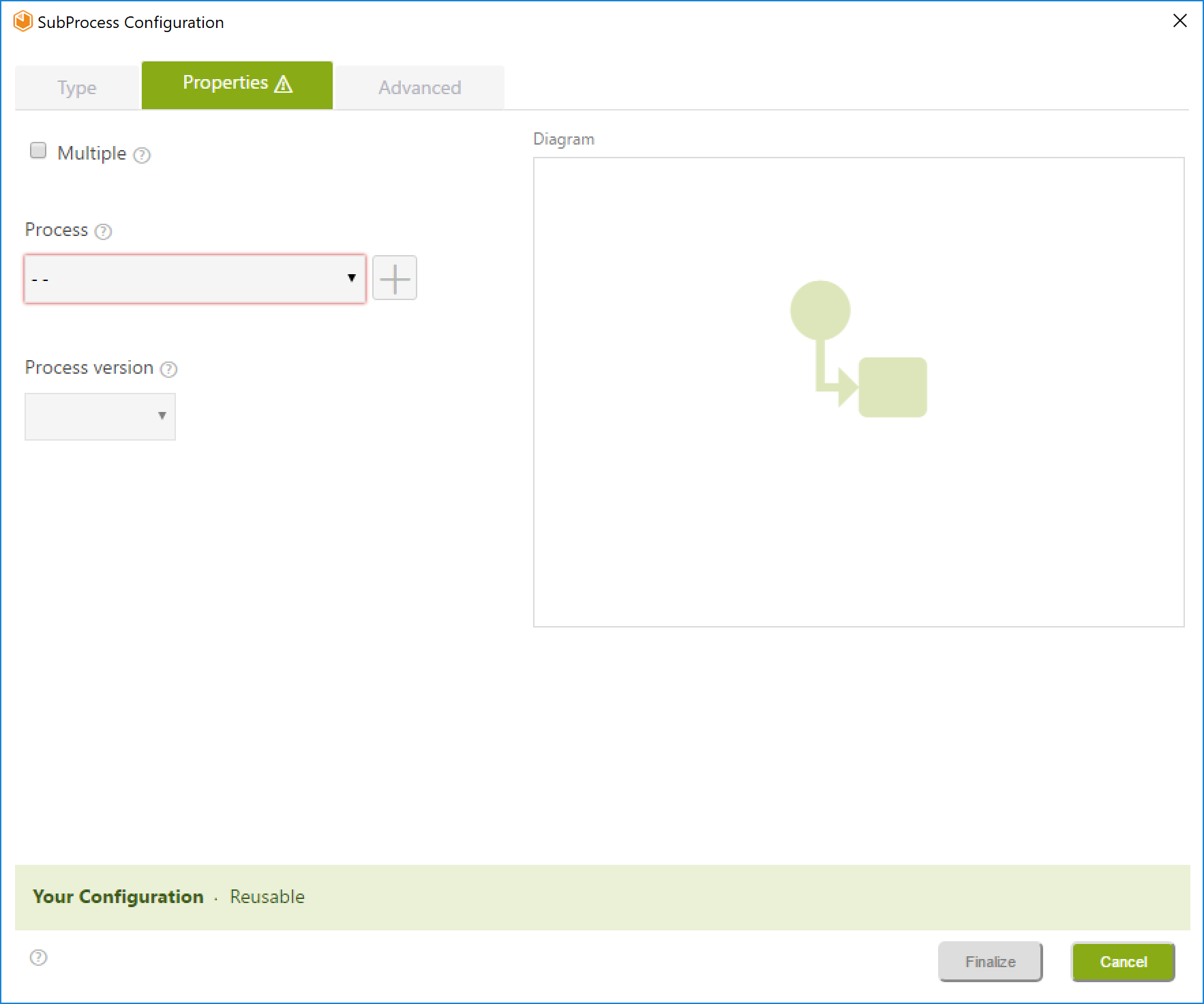
Controls Description Multiple Check-box Sets the Sub-Process as Multiple. Processes drop-down list Displays the existing processes list and sets the selected one as the Sub-Process. Add button Lets the user create a new process. Process version drop-down list Displays the process versions list and sets the selected one as the Sub-Process version. Diagram Displays a preview snapshot of the process model selected. If a new process is selected, the Diagram control will remain empty. Status Bar Presents the Sub-Process status configuration horizontally.
Defining the Reusable Sub-Process
You can either select an existing Process or create a new one:
To Set an Existing Process
-
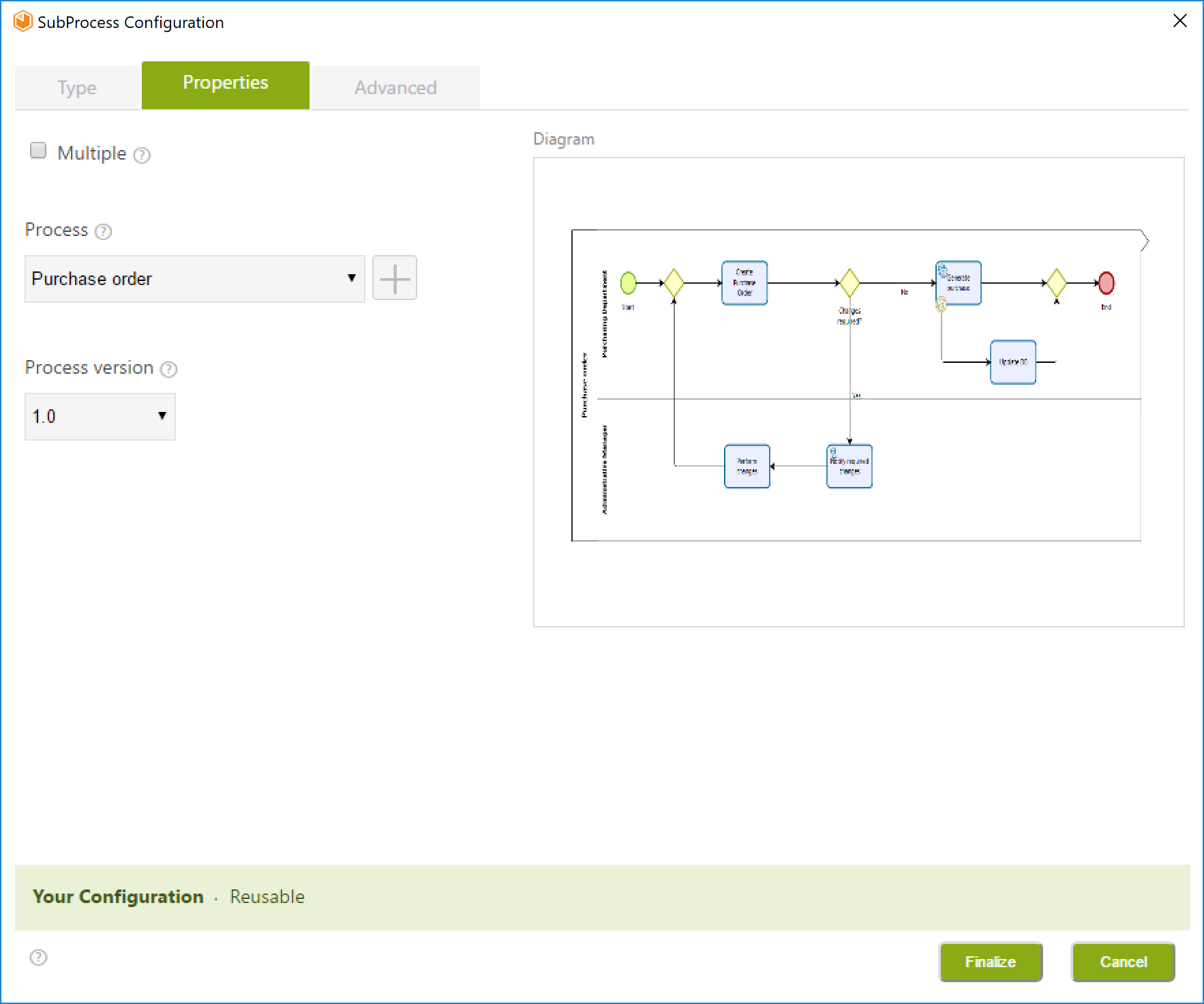
Click the drop-down list to select the desired process.
-
Click the Process version drop-down list and select the desired version.
-
Click the Finalize button.
To Create a New Process
-
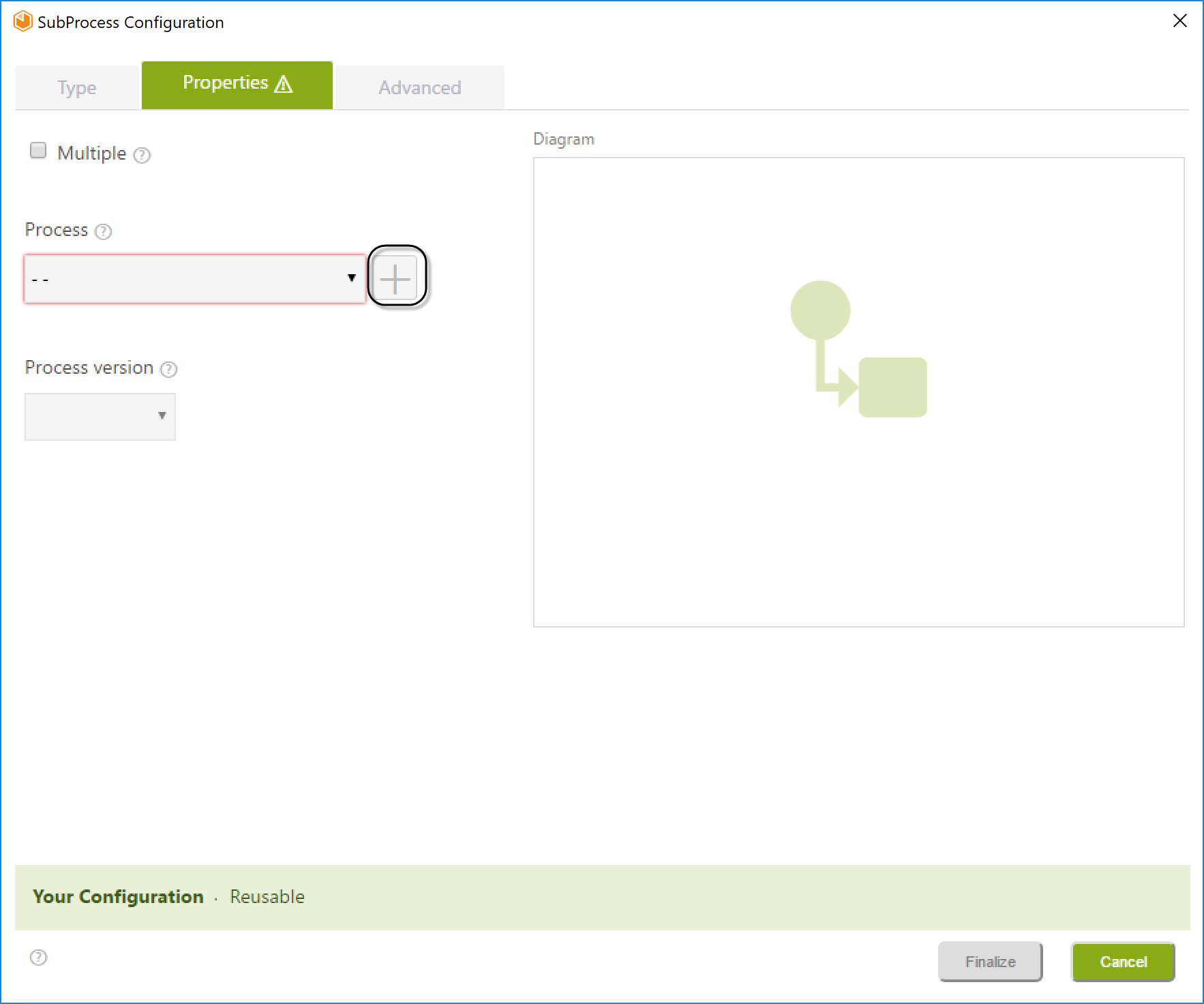
Click the Add button in the properties window.
-
Type the name of the new Process and click Create.
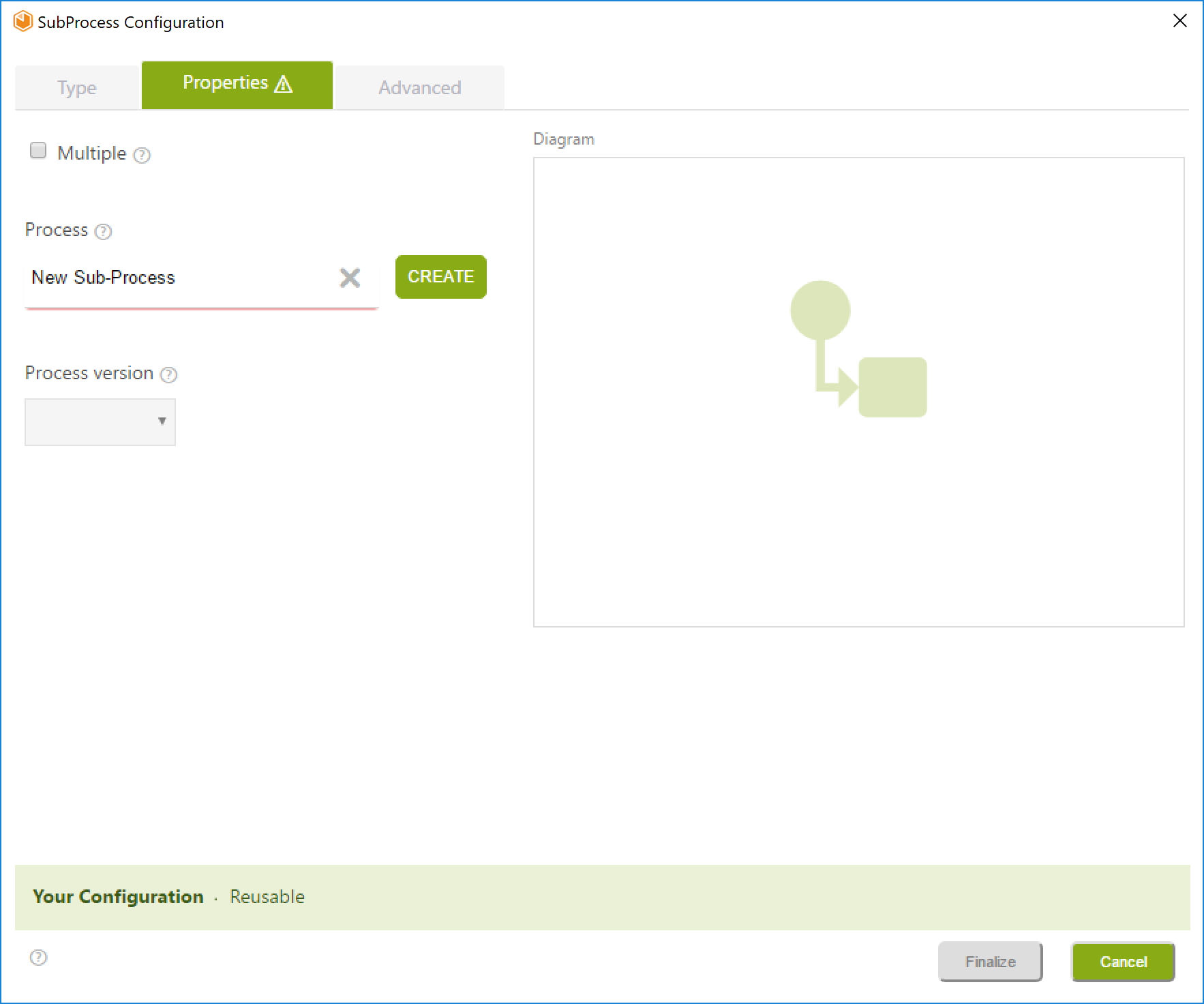
-
Select the Process from the drop-down list and click Finalize.
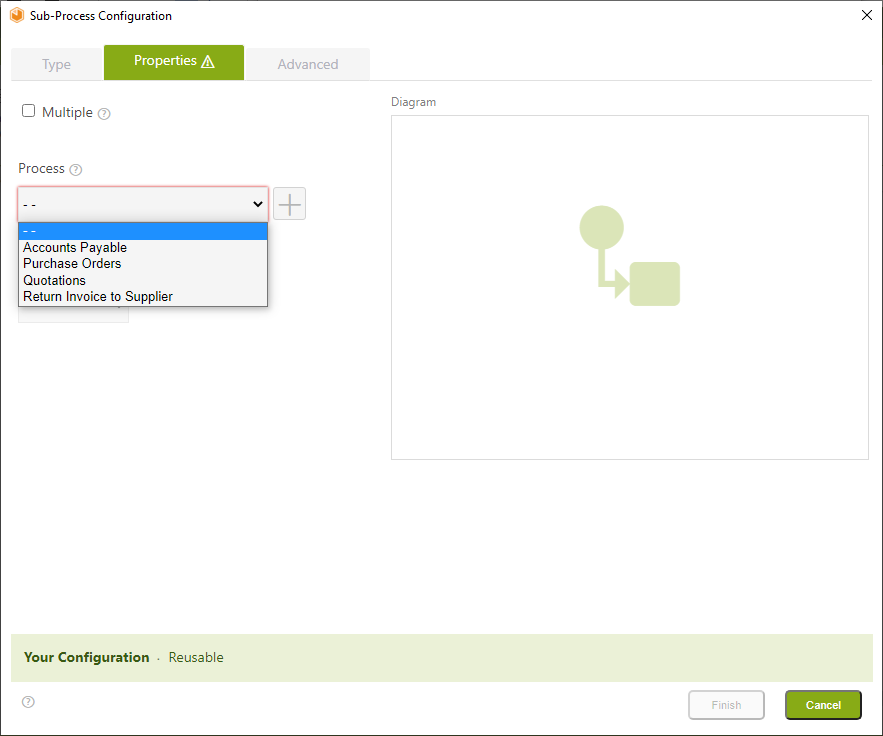
Setting the Exit Mode
-
Select the Advanced tab to set the Exit mode within the following options:
-
Stand Alone:
The parent Process continues with the next step in its Process flow as soon as the Sub-Process is created, without waiting for it to be completed.
If the parent Process ends, the Sub-Process remains in effect (opened). -
Integrated:
The Sub-Process must be fully completed before the parent Process continues with the next Activity in its flow. -
In this case, the Purchase Order Sub-Process must be completed before the Purchase Request Process finishes.
Select Integrated mode.
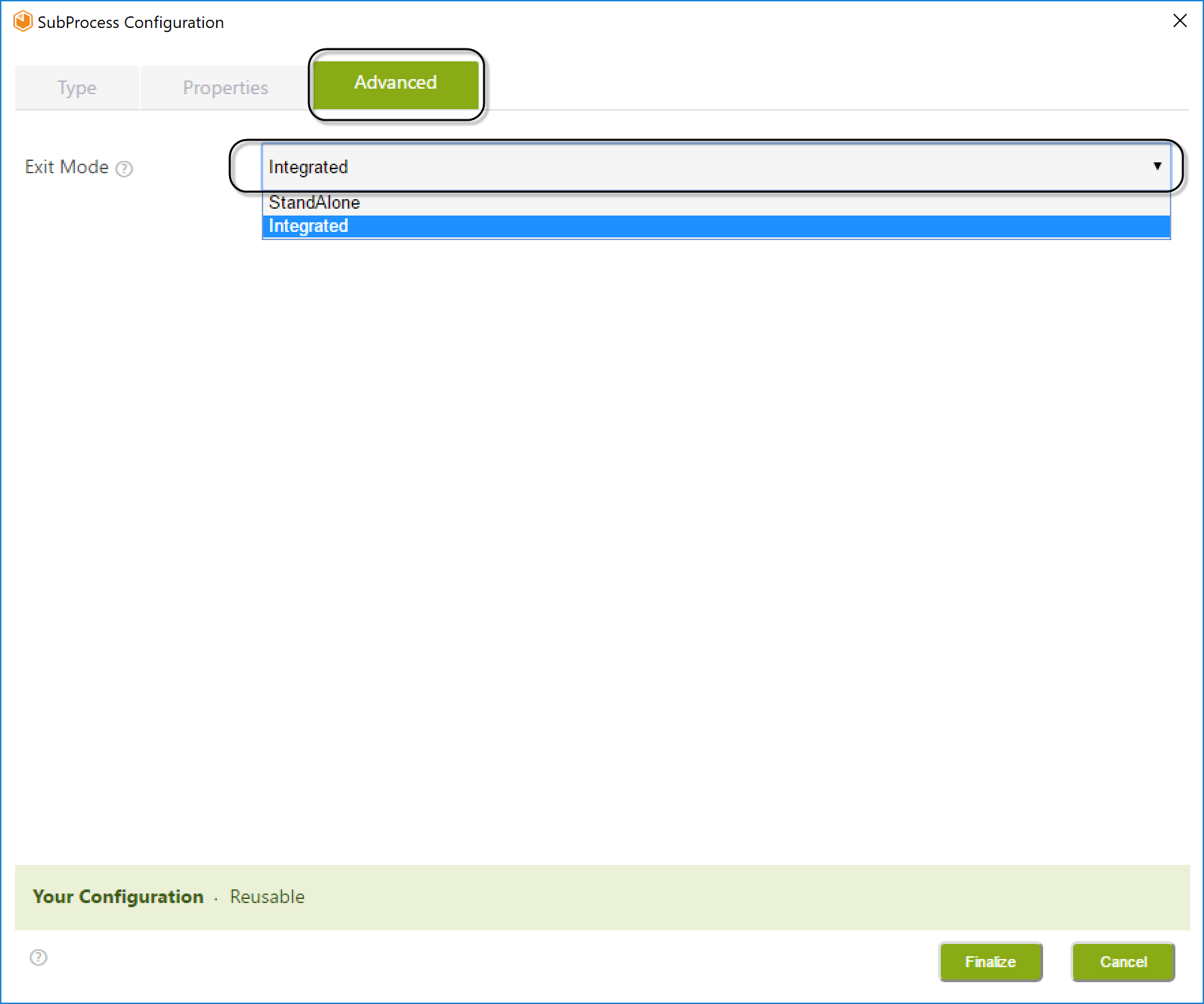
-
-
Select the Exit mode from the two options:
-
Stand Alone: The parent Process continues with the next step without waiting for the Sub-Process to complete.
-
Integrated: The parent Process waits for the Sub-Process to fully execute before continuing.
-
Since the Purchase Order Sub-Process must be completed before the Purchase Request Process finishes, select Integrated mode.
-
-
Finally, click Finish. Your Purchase Order Reusable Sub-Process has been successfully configured.
Important Note
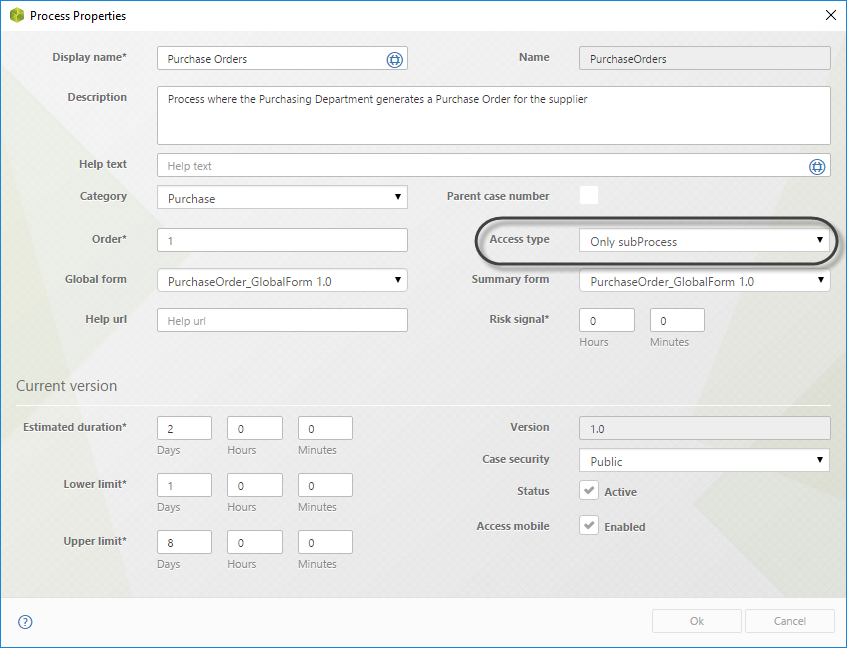
The Reusable Sub-Process must have an Access Type defined as Process or Only Sub-Process in the Process properties.
-
If not, it will not appear in the wizard's selection list, even if it has been created.
-
In the Expert View, right-click the Sub-Process' version and select Properties.
-
Ensure that either Process or Only Sub-Process is selected.